
Install Mac OS X in VMware Windows PC
This article explains step by step method to install Mac OSX in VMware on your Windows PC. If you are interested to learn something on Mac OS X 10.5.5 Leopard or do some testing on Mac OS, then you can continue read this article. This article is only for testing purpose. Whoever doesn’t have chance to buy apple hardware with Mac OS, can use this method to install and run Mac on VMware home Windows PC.                                          Installation is not ‘Very’ Easy
Installation is not easy as inserting the CD and click ‘Next’ ‘Next’ or running some executable files. I wanted to install and learn Macintosh OSX on Windows in my PC, so I searched on internet for possibilities to have Macintosh on Windows computer. The results returned nothing very useful other than changing your XP, Vista themes to Mac OS themes. Based on the other tips in several sites and after I did it practically, now I’m writing this method to install mac on VMware in Windows PC.
But still I like to share what I found when I searched,
This video shows nicely how to change the XP theme to Mac OS theme. It looked as good video. But when I tried to install it…., guess what? Anti-virus popped up. I left it.
Step by step to change the Windows theme to Mac [1]
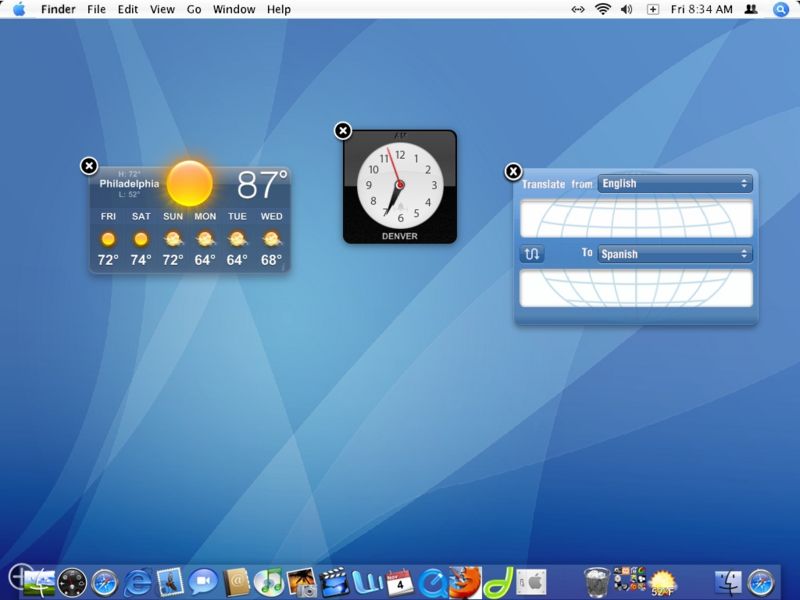
But I’m talking about real Mac. As I said earlier installation is not very easy since both OS hardware platform requirements are different, Mac can be installed on Virtual PC on your PC. To make the installation easy, in other word “to avoid the Mac installationâ€, we will just import the Mac OS pre-installed hard disk to your PC using VMware. Don’t be more confused, follow the below easy steps. Here are the requirements,
Software Requirements for Install Mac on VMware
 Virtual PC software. Several virtual PC software available, but this method goes with VMware workstation since we will be using VMware hard disk image.
VMware workstation 6 or more
you can download the VMwareWork Station at VMware site here [2] . Either you can try 30-day free evaluation version or buy the full version, but don’t ask crack.
Mac OS X 10.5.5 Leopard VMware image download
[3] (Note â€" This is a torrent download)
Hardware Requirements:
Make sure after you installed VMware workstation, you have minimum below hardware resources to allocate for Mac OS.
RAM â€" 1GB
Hard Disk 15GB
Processor â€" Automatic allocation.
Install Mac on VMware Step by Steps
1) Install VMware Workstation.2) Download Mac OS 10.5.5 Leopard  VMware Hard disk image. ( Approx Size â€" 1.9GB)
3) Extract the Image to a folder (You need WinRAR for extraction and extracted size is Approx 9.4GB). Make sure extraction is successful and you get all VMware files as below
4) Start VMware workstation and open the Mac OS X Leopard.vmx. ( In VMware go to File â€" Open from extracted place)
5) Once you open the correct vmx files, you can see the configurations which already done on the image. The below screen is the default one when you open it, before you power on the virtual PC. ( this is what I’m getting in my PC)
6) Make sure Guest OS should be ‘FreeBSD’. Even if you have Dual processor and have option to select two processors in VMware option, DO NOT change to two. Leave the Processors 1 only. Do not worry about Hard disk allocation 30GB. You can increase the memory size if you have memory resource in your computer.
7) That’s it click ‘Power on this virtual machine’. Now you should be able to see Mac OS.
8) In case your Mac stuck with following welcome screen for long time,
You must disable ‘Intel Hardware Virtualization’ from your BIOS.  Note that any time you enable or disable the Hardware virtualization setting in the BIOS; one has to completely power off (cold restart) the CPU for 10 seconds before booting.
Read More about how to Disable or Enable Hardware Virtualization in BIOS [4]
Now start the Mac on VMware again, this time it will work fine.
Network
Somewhere I read that Network will not working in Mac with VMware, but it works fine with this image. I tested ‘Bridged’ and ‘NAT’ networks in VMware. It worked fine.
Mac Admin Password
This OS image has Mac Admin password, the password is ‘password ‘.
Mac VMX File
Here is the correct VMX file for your reference
.encoding = “windows-1252″
config.version = “8″
virtualHW.version = “7″
scsi0.present = “TRUEâ€
scsi0.virtualDev = “lsilogicâ€
memsize = “1024″
scsi0:0.present = “TRUEâ€
scsi0:0.fileName = “Mac OS X Leopard-000001.vmdkâ€
ide1:0.present = “TRUEâ€
ide1:0.autodetect = “TRUEâ€
ide1:0.deviceType = “cdrom-rawâ€
floppy0.present = “FALSEâ€
ethernet0.present = “TRUEâ€
ethernet0.startConnected = “TRUEâ€
ethernet0.virtualDev = “e1000″
ethernet0.wakeOnPcktRcv = “FALSEâ€
usb.present = “TRUEâ€
ehci.present = “TRUEâ€
sound.present = “TRUEâ€
sound.fileName = “-1″
sound.autodetect = “TRUEâ€
mks.enable3d = “TRUEâ€
pciBridge0.present = “TRUEâ€
pciBridge4.present = “TRUEâ€
pciBridge4.virtualDev = “pcieRootPortâ€
pciBridge4.functions = “8″
pciBridge5.present = “TRUEâ€
pciBridge5.virtualDev = “pcieRootPortâ€
pciBridge5.functions = “8″
pciBridge6.present = “TRUEâ€
pciBridge6.virtualDev = “pcieRootPortâ€
pciBridge6.functions = “8″
pciBridge7.present = “TRUEâ€
pciBridge7.virtualDev = “pcieRootPortâ€
pciBridge7.functions = “8″
vmci0.present = “TRUEâ€
monitor.virtual_mmu = “automaticâ€
monitor.virtual_exec = “automaticâ€
roamingVM.exitBehavior = “goâ€
displayName = “Mac OS X Leopardâ€
guestOS = “freebsdâ€
nvram = “Mac OS X Leopard.nvramâ€
virtualHW.productCompatibility = “hostedâ€
ft.secondary0.enabled = “TRUEâ€
tools.upgrade.policy = “useGlobalâ€
extendedConfigFile = “Mac OS X Leopard.vmxfâ€
ide1:0.fileName = “auto detectâ€
ide1:0.startConnected = “FALSEâ€
ethernet0.addressType = “generatedâ€
tools.syncTime = “FALSEâ€
uuid.location = “56 4d 4e 0f ea ce 5e 03-83 66 d3 86 b7 b4 42 e4″
uuid.bios = “56 4d 4e 0f ea ce 5e 03-83 66 d3 86 b7 b4 42 e4″
scsi0:0.redo = “â€
vmotion.checkpointFBSize = “134217728″
pciBridge0.pciSlotNumber = “17″
pciBridge4.pciSlotNumber = “21″
pciBridge5.pciSlotNumber = “22″
pciBridge6.pciSlotNumber = “23″
pciBridge7.pciSlotNumber = “24″
scsi0.pciSlotNumber = “16″
usb.pciSlotNumber = “32″
ethernet0.pciSlotNumber = “33″
sound.pciSlotNumber = “34″
ehci.pciSlotNumber = “35″
vmci0.pciSlotNumber = “36″
ethernet0.generatedAddress = “00:0c:29:b4:42:e4″
ethernet0.generatedAddressOffset = “0″
vmci0.id = “660874947″
tools.remindInstall = “TRUEâ€
checkpoint.vmState = “â€
ethernet0.connectionType = “natâ€
Mac OSX in VMware under Windows [5] check the different method..
Links
- ^ Step by step to change the Windows theme to Mac (www.wikihow.com)
- ^ here (www.vmware.com)
- ^ Mac OS X 10.5.5 Leopard VMware image download (www.sysprobs.com)
- ^ Read More about how to Disable or Enable Hardware Virtualization in BIOS (www.sysprobs.com)
- ^ Mac OSX in VMware under Windows (oreilly.com)
source: amanahad.blogspot.com
No comments:
Post a Comment