

After writing a tutorial on how to enable a German-English dictionary on the Kindle app for iPad and iPhone , today I’d like to share with you today how to enable the same functionality on your Android Kindle app.
The process is a kind of a “hackâ€, i.e. you will have to work with the phone’s internal file structure, but the process is relatively simple, virtually danger-free and no rooting is required.
Download the Standard German-German Dictionary
While opening any German book in your Kindle app, long-press on a word to get the dictionary popup. If you haven’t downloaded the standard German-German dictionary yet, you will prompted to do so. Just tap “Download†and wait a few moments.
After installing the standard German-German dictionary, you will be able to tap any words in your books and get a German explanation of the vocabulary. For beginners and intermediate learners, this will not be very helpful. This is why we’re going to replace the standard German-German dictionary with a German-English dictionary in the next step.
 Â
 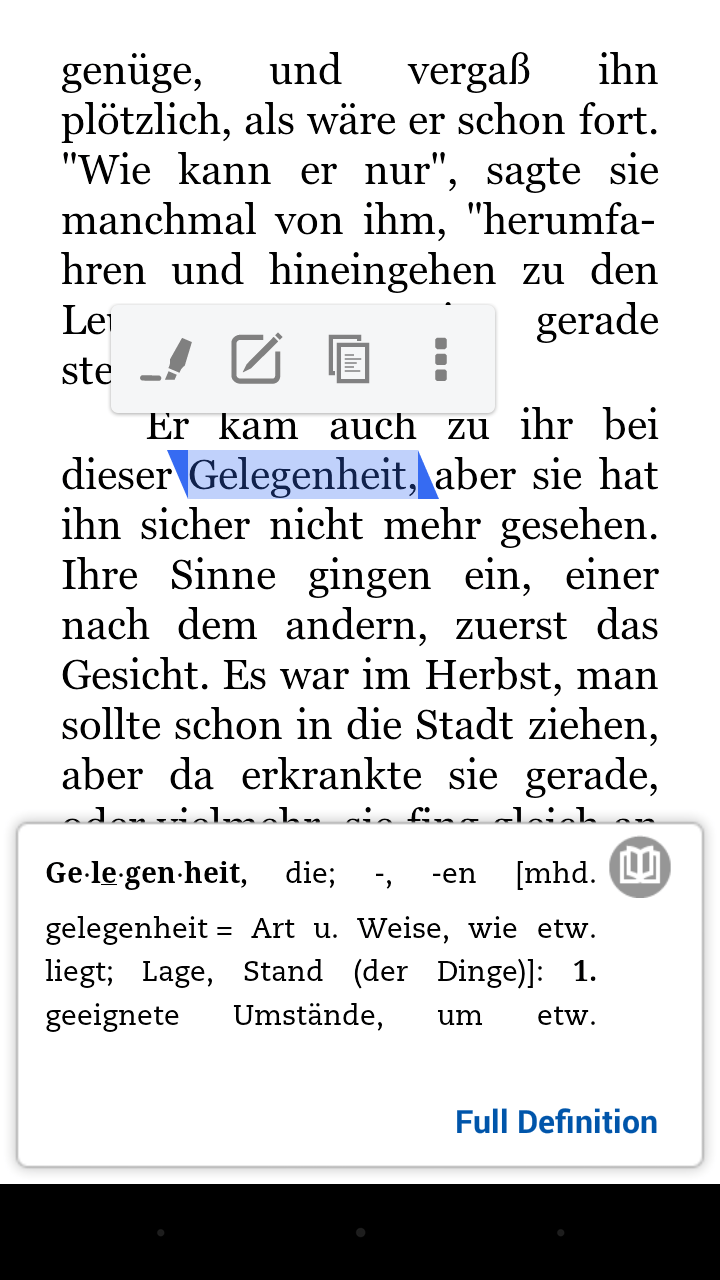
before download (left) and after download (right)
Replace The German-German Dictionary With a German-English Dictionary
For the next step, we’re going to need to download a dictionary from somewhere. As usual, I recommend this site [1] as a starting point where you can get (not perfect) but free dictionaries. Look for where it says German -> English (or click here [2] ) to download the dictionary to your computer.
After having downloaded your new dictionary, connect your Android device to your computer. Note: You could do all of this process directly on your phone as well by using an app such as ES File explorer [3] , but for now I’ll show how to do it in Windows Explorer.
1. Navigate to the Kindle App Folder on Your Android Device
Depending on how your device is set-up you’ll find the Kindle app data under Internal storage/Android/data/com.amazon.kindle/files/ or sdcard/Android/data/com.amazon.kindle/files.
2. Look For A Folder With The Name B003YL4LVQ
Once you’re in the Kindle App folder of your Android device, look for a folder with the name B003YL4LVQ. This is the folder where the standard German-German dictionary is stored. The actual filename of the German dictionary is B003YL4LVQ_EBOK.prc

2. Copy The German-English Dictionary Into The App Folder

3. Change The Filenames Of the Old And The New Directory (IMPORTANT!)
In this step, we’re going to trick the Android Kindle app into thinking that our new German-English dictionary is actually the old German-German one. In order to do this, we simply swap the filenames. As you can see below, I’ve changed B003YL4LVQ_EBOK.prc to B003YL4LVQ_EBOK.prcOLD and German-English.mobi to B003YL4LVQ_EBOK.prc.
Windows will complain that “the file may become unusable†but you can just ignore that and click “Yesâ€.

Enjoy Your New German-English Dictionary
Now you should be able to tap on German words and get the the English translation. Below I’ve added a few screenshot of our new German-English dictionary in action. Simply tap a word to get the translation. By tapping on “Full Definition†in the popup you can get read the whole dictionary entry and get more information about individual words.
 Â
  Â
 
German-English dictionary installed and working on Android Kindle app
No comments:
Post a Comment